Asset search
Last updated
Find the approved version by describing it.
Any team member or agent can find any piece of code or creative from Google Drive, Dropbox or Figma at a moment’s notice.
The example
Made for DORADO, a sample brand.
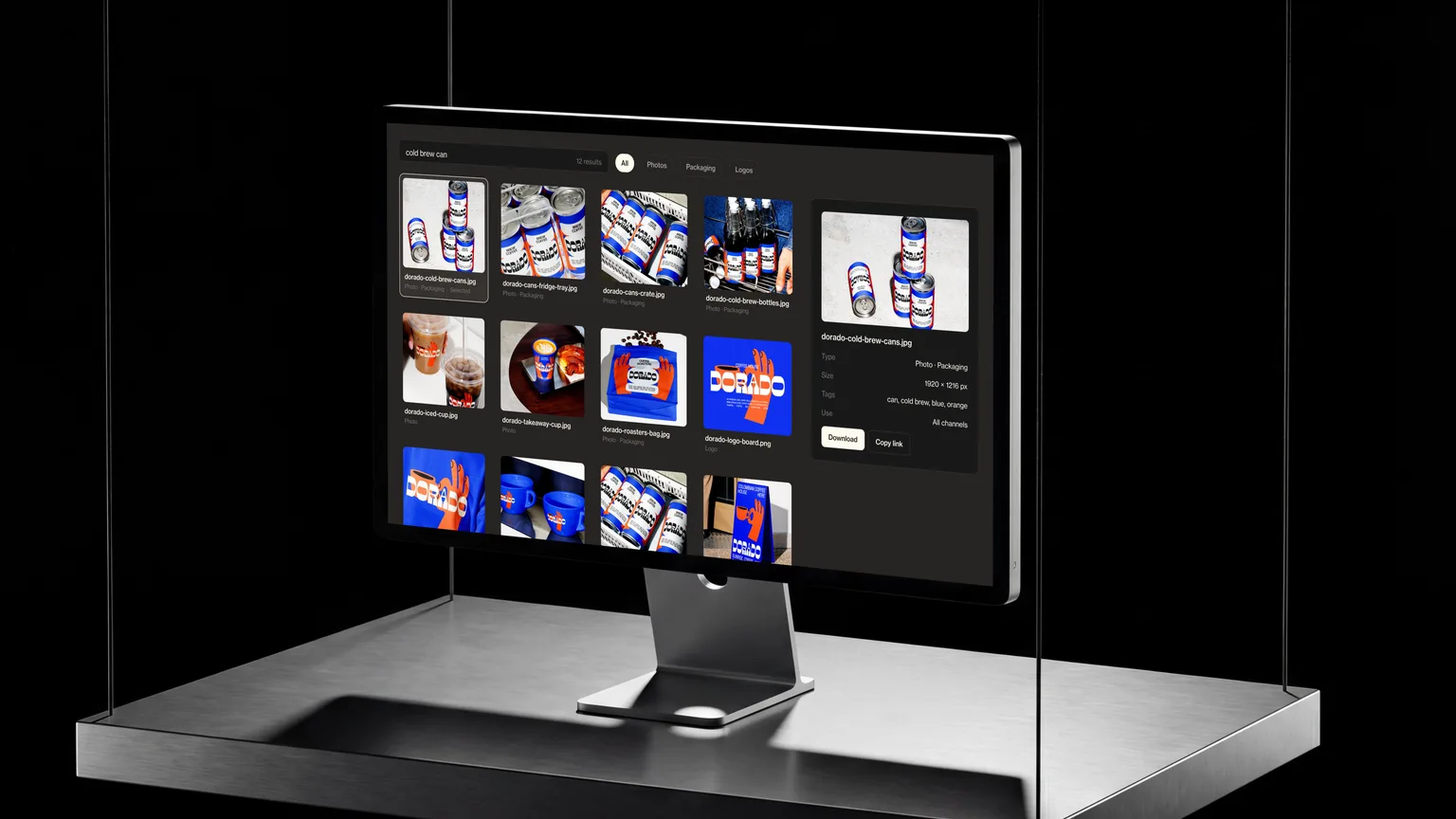
 01 · hero
 02 · cans
 03 · sweatshirt
What you need
- An agent connected to BOS through MCP.
- Your brand in BOS: Brand Hub, Brand Brain and Assets filled in.
- Claude
- Figma
Run it with your agent
Once connected, give your agent this prompt:
Prompt
Find the dark version of our logo for a slide. Show the approved matches from BOS with their usage rights, then place the right format in my Figma file.
Or run the command:
Command
Replace the details in brackets with your own.
How it works
Ask in Claude
Describe it. “The dark logo for a slide.”
Search the library
BOS searches by meaning and returns approved files.
Pick one
Claude shows the matches and their usage rights.
Right version
The right format and size, with its usage note.
Placed in Figma
The asset lands in your file. No downloads folder.
BOS supplies the brand. Your agent does the work in the tools you already use. DORADO is a sample brand, not a customer.
On bos.live: Asset search with BOS
Was this page helpful?
Tell us what's missing or unclear: hello@opensession.co